> ## Documentation Index
> Fetch the complete documentation index at: https://reportana.dev/llms.txt
> Use this file to discover all available pages before exploring further.
# How to Capture Data
### Capturing via WhatsApp
In Reportana's advanced automations and campaigns, it is possible to use WhatsApp messages to interact with customers and capture important data. The advanced options for WhatsApp messages allow you to validate customer responses and store them in specific variables for later use. These variables can be used within the **Run JavaScript** block, enabling the creation of more complex logic. See the example below:
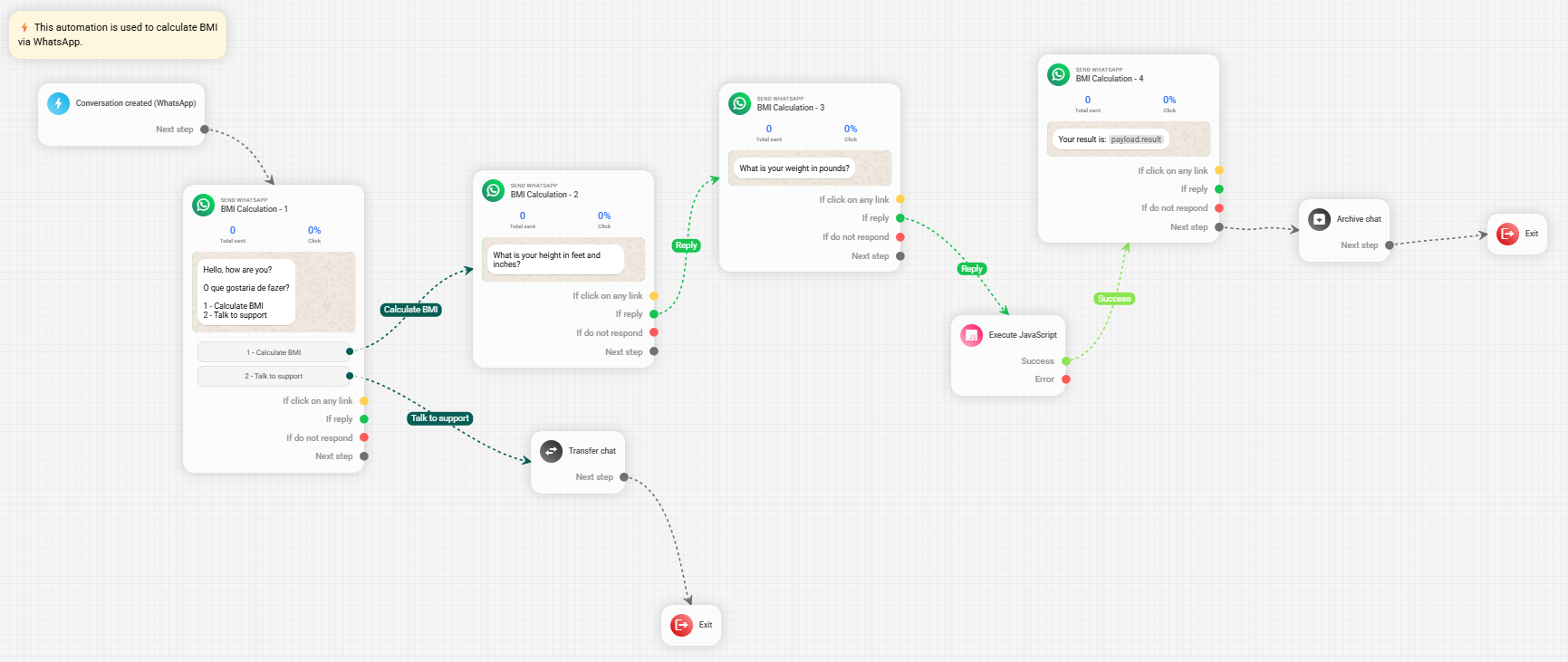
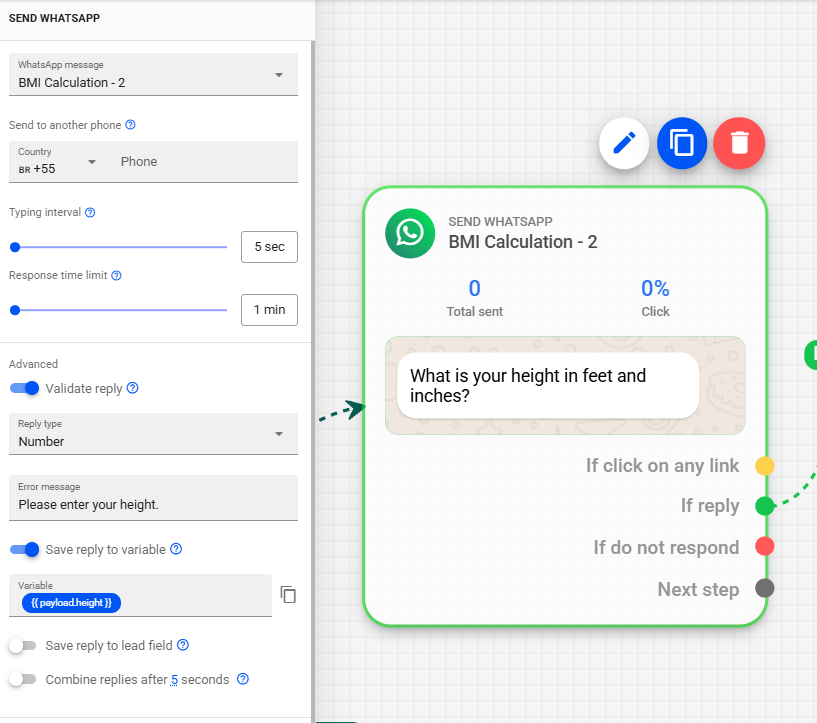
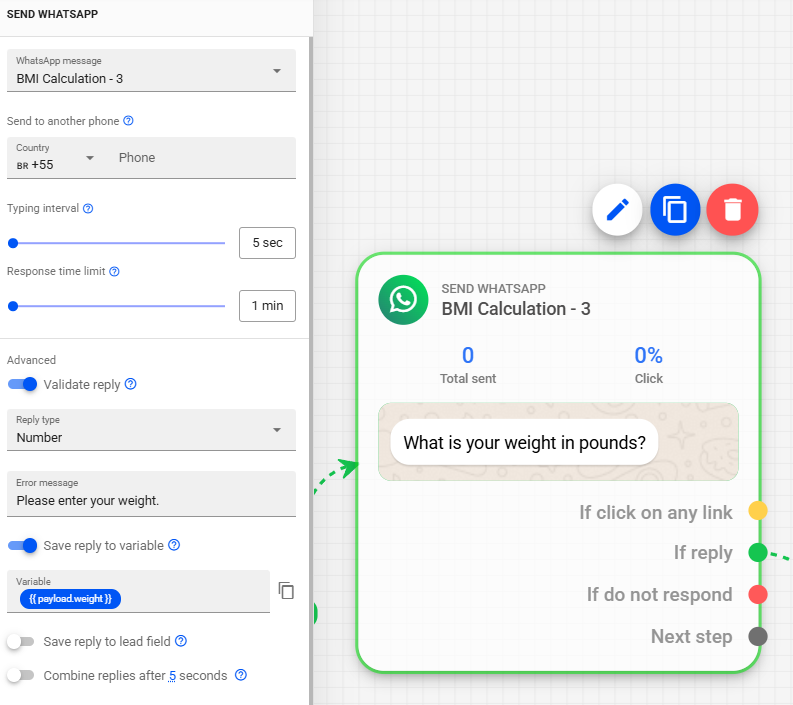 In this example, we define an interaction within the automation structure to capture the customer's responses, which are stored in the variables `payload.height` and `payload.weight`. These variables can later be used to calculate the BMI, as shown in the following example:
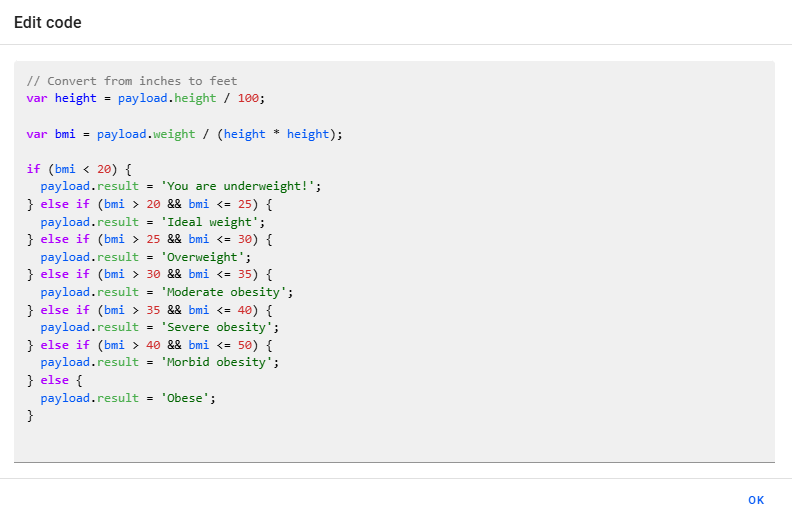 ```javascript Example Code 1 theme={null}
var height = payload.height / 100;
var bmi = payload.weight / (height * height);
if (bmi < 20) {
payload.result = 'You are underweight!';
} else if (bmi > 20 && bmi <= 25) {
payload.result = 'Ideal Weight';
} else if (bmi > 25 && bmi <= 30) {
payload.result = 'Overweight';
} else if (bmi > 30 && bmi <= 35) {
payload.result = 'Moderate Obesity';
} else if (bmi > 35 && bmi <= 40) {
payload.result = 'Severe Obesity';
} else if (bmi > 40 && bmi <= 50) {
payload.result = 'Morbid Obesity';
} else {
payload.result = 'Result not defined';
}
```
```javascript Example Code 2 theme={null}
var subscriptionValue = payload.response_json.users[0].subscriptionAmount;
// Calculating the value with a 15% discount
var discountedValue = subscriptionValue - subscriptionValue * 0.15;
payload.discount = discountedValue.toFixed(2);
```
To enhance understanding of data capture using WhatsApp messages, we recommend reading our article available in the Help Center: [Understanding the Logic, Time, Chat, and Advanced Actions in Automations](https://reportana.com/help/article/understanding-logic-time-chat-and-advanced-actions-automations)
### Capturing with Send Webhook
In advanced automations and campaigns, it is also possible to use the **Send Webhook** functionality to receive and capture data from other systems. This data can be integrated into automations, allowing, together with the use of **Execute JavaScript**, automations to be customized by creating dynamic experiences during customer interaction.
1. To configure data capture through **Send Webhook**, first you can define the URL of an external system and choose the desired request method.
```javascript Example Code 1 theme={null}
var height = payload.height / 100;
var bmi = payload.weight / (height * height);
if (bmi < 20) {
payload.result = 'You are underweight!';
} else if (bmi > 20 && bmi <= 25) {
payload.result = 'Ideal Weight';
} else if (bmi > 25 && bmi <= 30) {
payload.result = 'Overweight';
} else if (bmi > 30 && bmi <= 35) {
payload.result = 'Moderate Obesity';
} else if (bmi > 35 && bmi <= 40) {
payload.result = 'Severe Obesity';
} else if (bmi > 40 && bmi <= 50) {
payload.result = 'Morbid Obesity';
} else {
payload.result = 'Result not defined';
}
```
```javascript Example Code 2 theme={null}
var subscriptionValue = payload.response_json.users[0].subscriptionAmount;
// Calculating the value with a 15% discount
var discountedValue = subscriptionValue - subscriptionValue * 0.15;
payload.discount = discountedValue.toFixed(2);
```
To enhance understanding of data capture using WhatsApp messages, we recommend reading our article available in the Help Center: [Understanding the Logic, Time, Chat, and Advanced Actions in Automations](https://reportana.com/help/article/understanding-logic-time-chat-and-advanced-actions-automations)
### Capturing with Send Webhook
In advanced automations and campaigns, it is also possible to use the **Send Webhook** functionality to receive and capture data from other systems. This data can be integrated into automations, allowing, together with the use of **Execute JavaScript**, automations to be customized by creating dynamic experiences during customer interaction.
1. To configure data capture through **Send Webhook**, first you can define the URL of an external system and choose the desired request method.
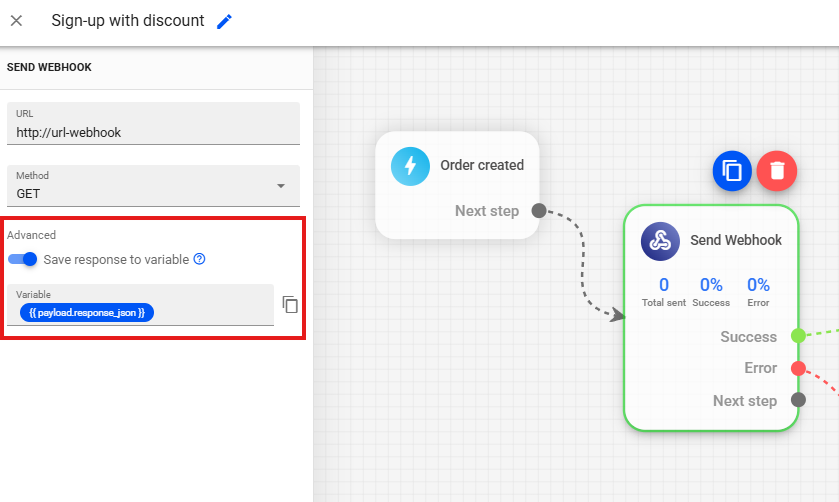
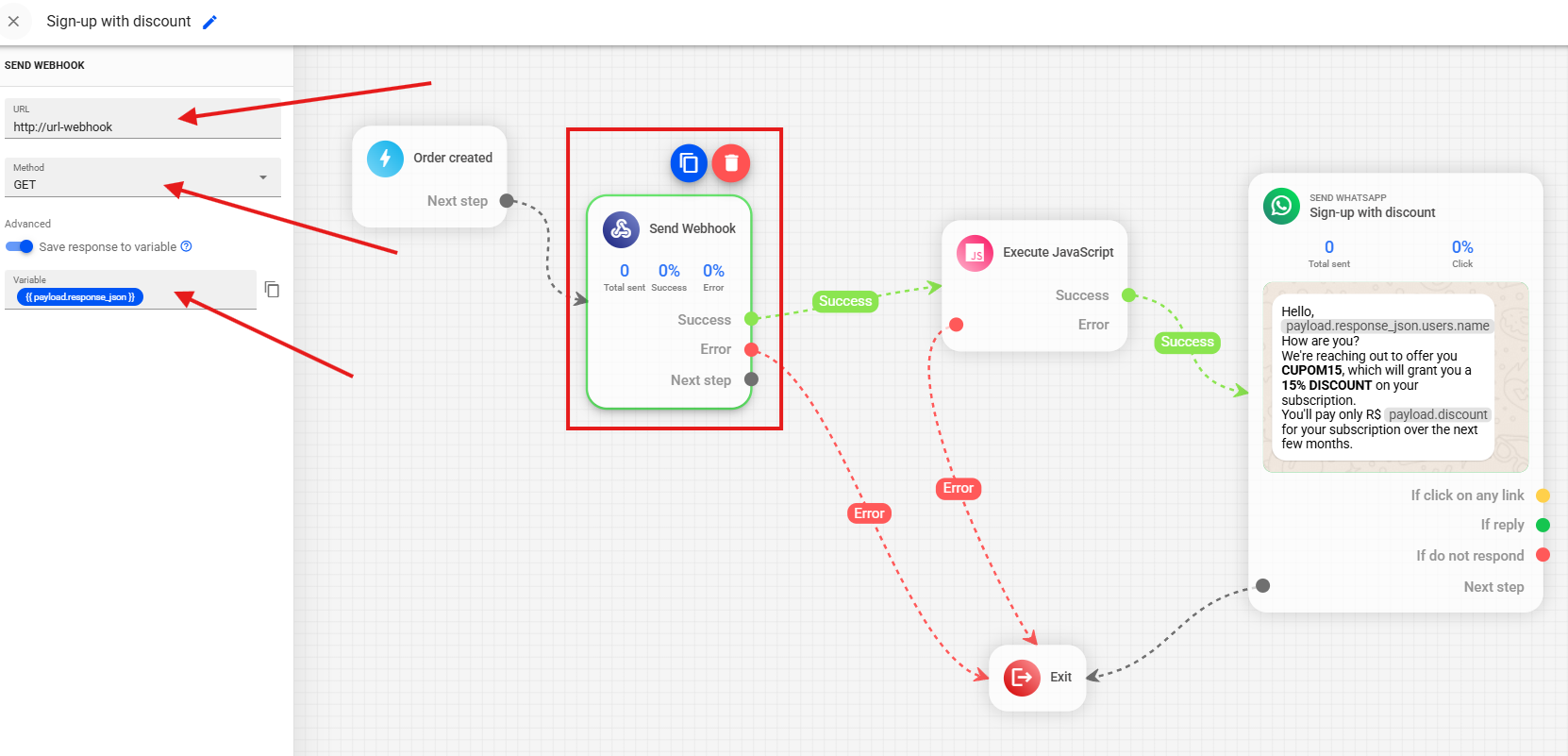 2. For data capture, the received response can be stored in a specific variable, which can be used in subsequent automation steps. In the example, we chose `payload.response_json` as the variable that will store the information.
 3. In the example, we receive the following data from a subscription in JSON format:
```json theme={null}
{
"users": [
{
"name": "Mary Smith",
"email": "mary.smith@example.com",
"phone": "+1 555-123-4567",
"plan": "Premium",
"subscriptionValue": 149.99
}
]
}
```
* Name: Name used in the subscription registration.
* Email: Email used in the subscription registration.
* Phone: Phone number used in the subscription registration.
* Plan: Active plan in the subscription.
* Subscription Value: The value of the respective subscription.
4. Next, in **Execute JavaScript**, we directly access the data captured by **Send Webhook** and create the code to provide the client, via WhatsApp, with the subscription value applying a 15% discount.
3. In the example, we receive the following data from a subscription in JSON format:
```json theme={null}
{
"users": [
{
"name": "Mary Smith",
"email": "mary.smith@example.com",
"phone": "+1 555-123-4567",
"plan": "Premium",
"subscriptionValue": 149.99
}
]
}
```
* Name: Name used in the subscription registration.
* Email: Email used in the subscription registration.
* Phone: Phone number used in the subscription registration.
* Plan: Active plan in the subscription.
* Subscription Value: The value of the respective subscription.
4. Next, in **Execute JavaScript**, we directly access the data captured by **Send Webhook** and create the code to provide the client, via WhatsApp, with the subscription value applying a 15% discount.
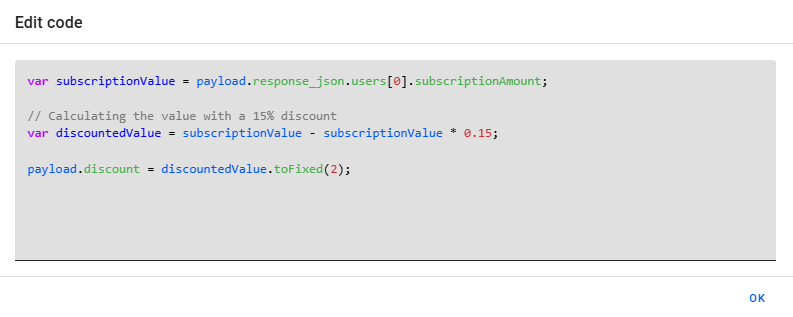 **Note:** In the code, we specifically access the property `payload.response_json.users[0].subscriptionValue` which corresponds to the current subscription value.
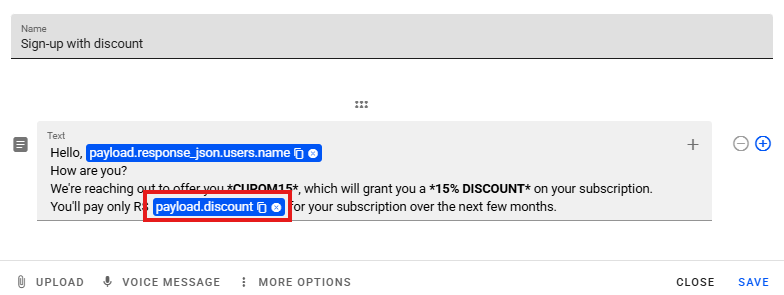
5. Finally, we use the result of the code saved in the variable `payload.discount` in the WhatsApp message that will be sent to the customer.
**Note:** In the code, we specifically access the property `payload.response_json.users[0].subscriptionValue` which corresponds to the current subscription value.
5. Finally, we use the result of the code saved in the variable `payload.discount` in the WhatsApp message that will be sent to the customer.